Pagalba
 Kontaktai
 Atsiliepimai
 Verslui
 Varlė
Varlė


Krepšelis tuščias
Turite Varlės paskyrą?
Prisijunkite, kad pamatytumėte krepšelio turinį
Prisijungti

 Visos prekės


 Krepšelis
Tuščias
Prekių
Krepšelis
Krepšelis
Tuščias
Prekių
Krepšelis
Prisijunkite, kad pamatytumėte krepšelio turinį
Prisijungti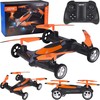
 4.6
4.6

 4.6
4.6

Kitų pardavėjų pasiūlymai nuo 36. 43 € (2)
 Į krepšelį

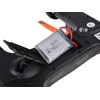
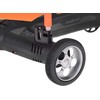
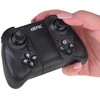
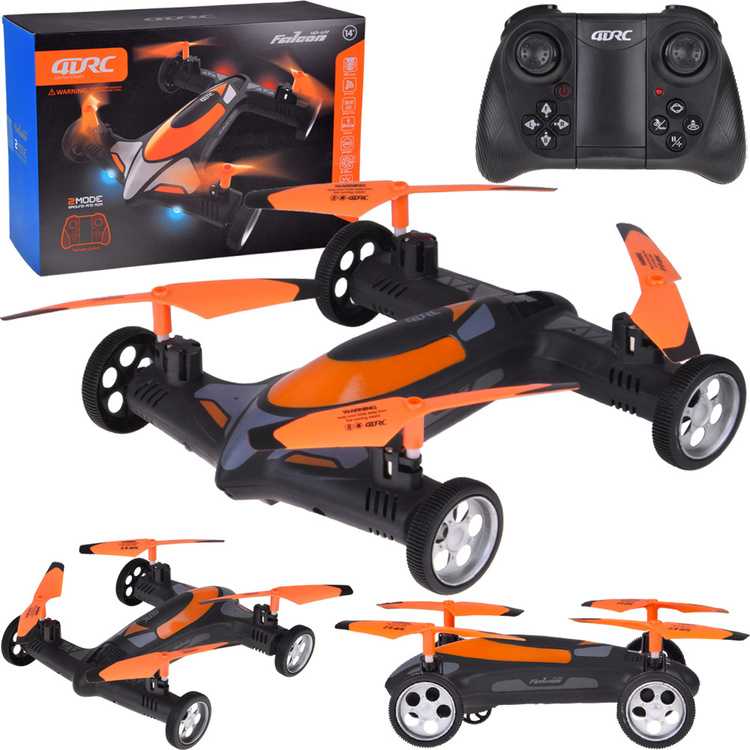
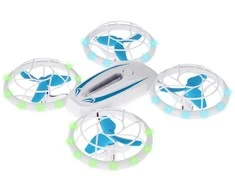
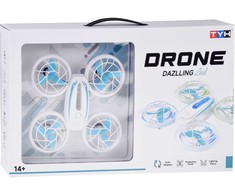
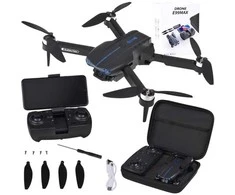
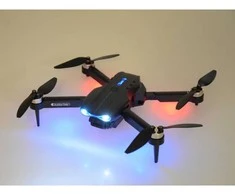
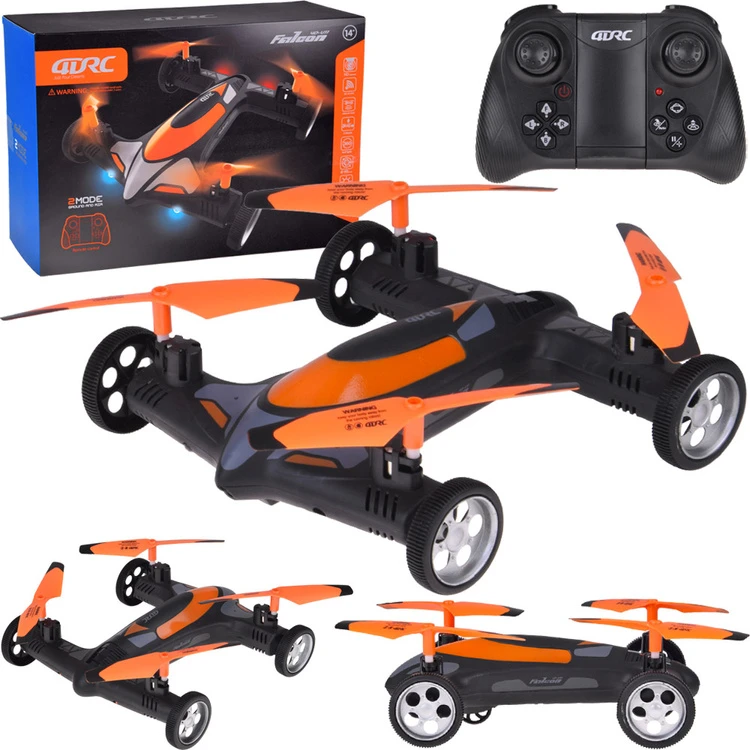
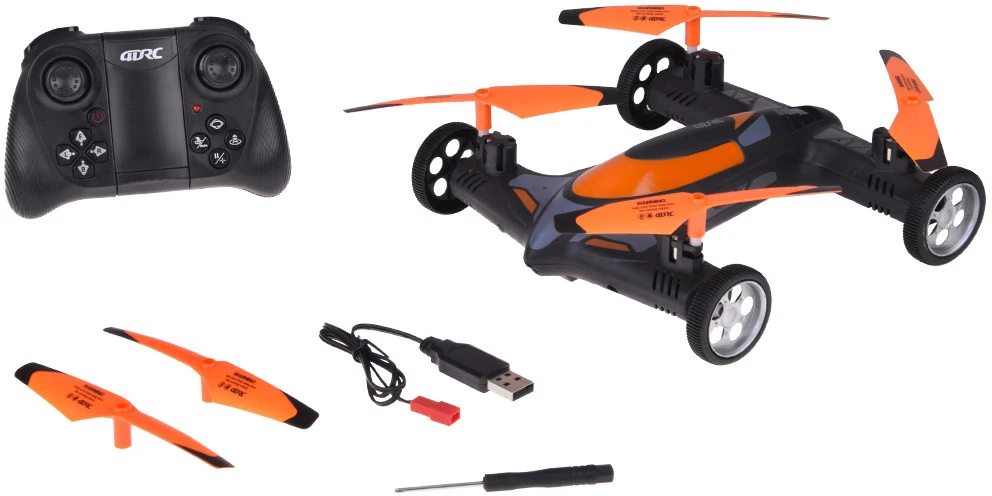
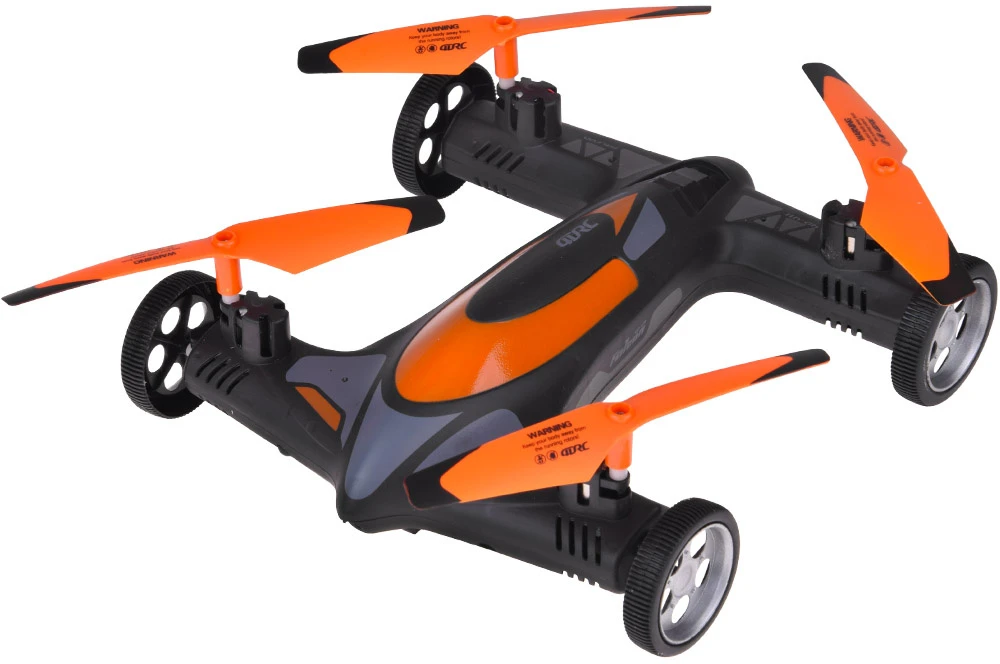
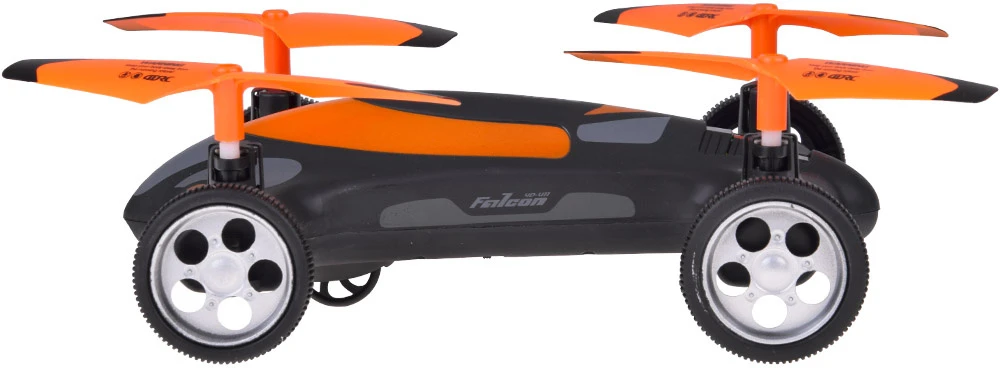
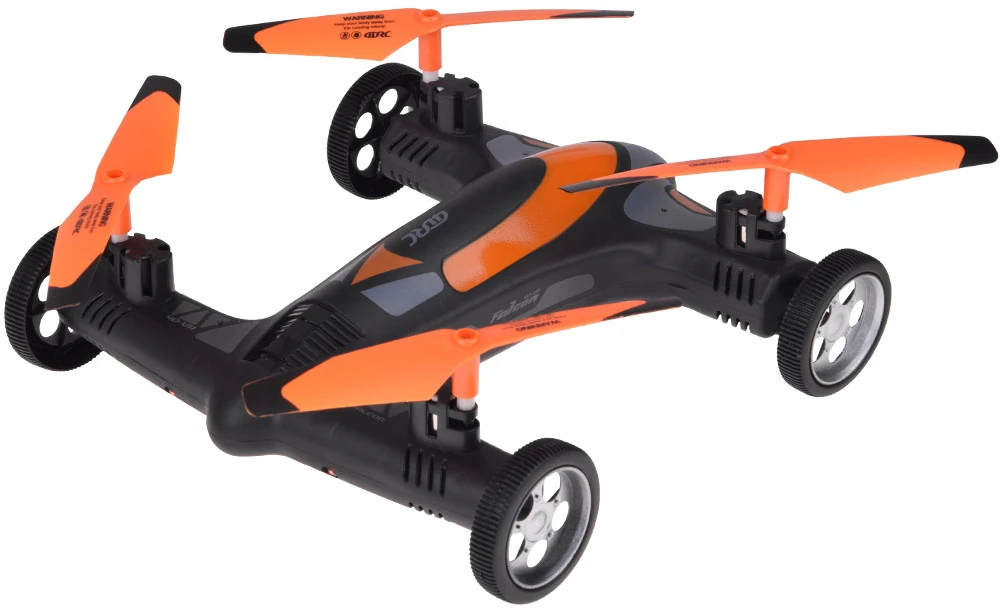
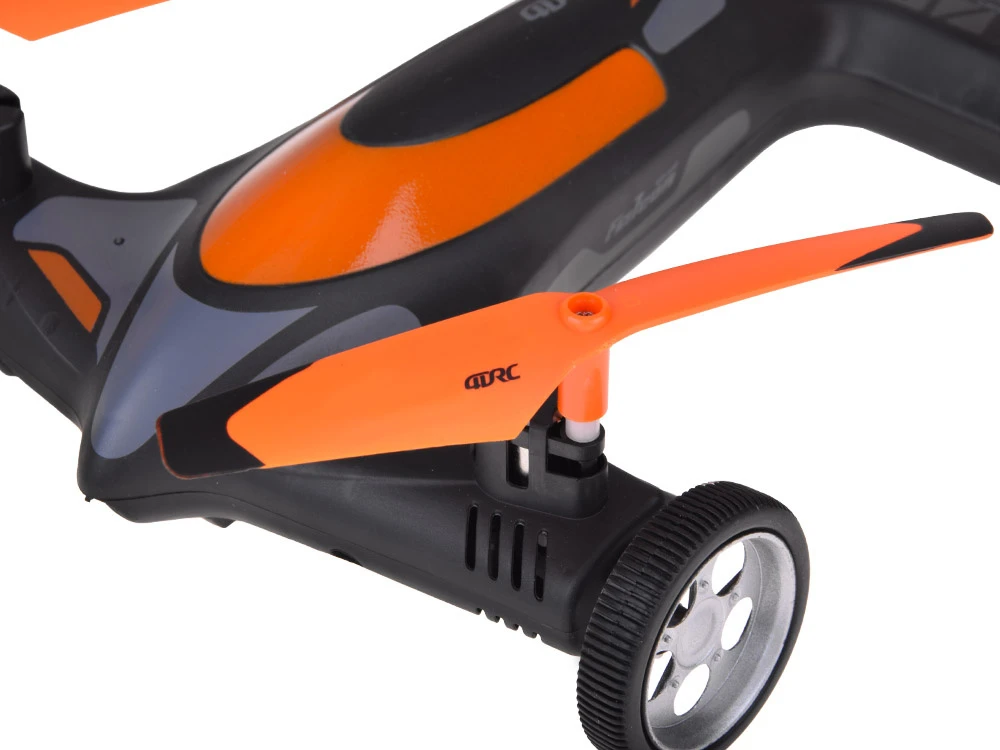
The Quadkopter QURC 4D-VII is a modern recreational drone equipped with a built-in camera and mobile app support. With intuitive control via remote or smartphone, one-touch take-off/landing, and headless mode, it is perfect for beginners and intermediate users. Its lightweight, shock-resistant construction and replaceable accessories make maintenance and repairs easy.
Suitable for users aged 14+.
- Model: QURC 4D-VII
- Drone power supply: Li-ion battery (charging via USB 5 V 2 A)
- Remote control power supply: 3 × AAA batteries (not included)
- Version: Wi-Fi (supports 4D FLY app)
- Functions:
- Control range: depends on environment and Wi-Fi signal interference
- App: 4D FLY (Android/iOS)
Propellers marked with letters A and B must be installed according to the diagram. Incorrect installation will prevent the drone from taking off.
Note: Before using the toy for the first time, charge the battery for at least 2 hours. Do not leave the battery unattended while charging. Keep away from heat and water.
App Features:
Gesture “OK” = take a photo
Gesture “V” = start recording video
Visit Jokomisiada for a wide selection of remote-controlled vehicles such as drones, planes, helicopters, tanks, racing cars, construction vehicles, and much more!
Pastaba Kaina nurodyta už 1 vienetą. Galimybės pasirinkti konkrečią prekę ar spalvą nėra.

 Dirbtinio intelekto nuomonė
 4
2025-12-16
4
2025-12-16
Kalėdinių dovanų pirkimo bumas jau kelis metus prasideda kur kas anksčiau nei likus kelioms savaitėms iki gražiausių žiemos švenčių. Jau antrus metus iš eilės koronaviruso baimė skatina žmones pasirūpinti šventinėmis dovanomis iš anksto saugiai, o ne paskutinę savaitę prieš …
Tikriausiai ne vienas sutiktų, jog kalėdinių dovanų paieška vaikams yra tikras galvos skausmas. Didžiulė žaislų įvairovė ir plačios pasirinkimo galimybės tikrai apsunkina šį ir taip ne patį lengviausią dovanų pirkimo procesą. Apie kalėdines dovanas vaikams jau tikrai galvoja ne tik …
Žaislai, žaisliukai… Jų pirkimas nepaisant to, kad rinkoje dabar didžiulis pasirinkimas, neretai tampa tikru iššūkiu tėvams ir kitiems, norintiems nudžiuginti vaikus. Net ir patys mažiausieji gali su negailestingu abejingumu padėti į šalį kelis mėnesius jūsų ieškotą dovaną ar neigdami pasukti …
 5.0
6 d. d.
5.0
6 d. d.
 4-6 d. d.
 5.0
4-6 d. d.
5.0
4-6 d. d.
 5.0
6 d. d.
5.0
6 d. d.
 5.0
4-6 d. d.
5.0
4-6 d. d.
 4-6 d. d.

 4-6 d. d.
 5.0
4-6 d. d.
5.0
4-6 d. d.

 4-6 d. d.
 4-6 d. d.

 2-10 d. d.
 5.0
5-8 d. d.
5.0
5-8 d. d.
 5.0
4-6 d. d.
5.0
4-6 d. d.

 5.0
2-3 d. d.
5.0
2-3 d. d.
 4-8 d. d.
 1-3 d. d.




 LP Express kurjeriu gegužės 27 d.
 Pristatymas DPD kurjeriu gegužės 27 d.